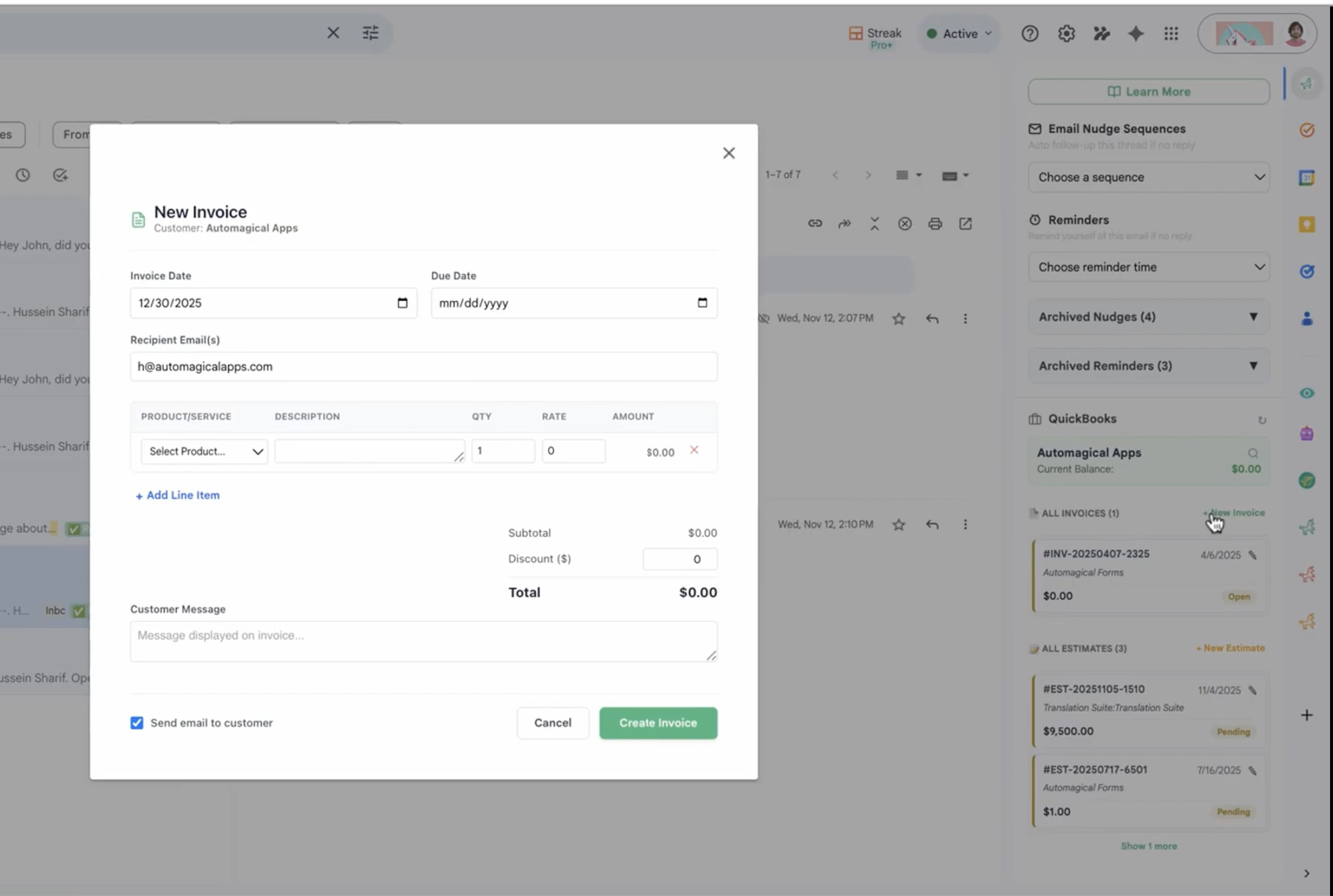
Connecting your accounting software to your communication hub is one of the most effective ways to reclaim lost time. If you’re a business owner using QuickBooks Online and Gmail, you’ve likely felt the frustration of constant “context switching”—flipping back and forth between tabs just to check an invoice status or create a quote.
In this guide, we’ll show you how to bring the full power of QuickBooks directly into your Gmail inbox, focusing on a free solution that does what even QuickBooks’ native tools can’t.
Why Connect QuickBooks to Gmail?
Most business owners treat Gmail and QuickBooks as two separate islands. But when they work together, your workflow transforms:
- Zero Context Switching: View customer balances and transaction history without leaving your email.
- Instant Intelligence: See if a customer has open estimates or overdue invoices as soon as you open their email.
- Faster Invoicing: Create new invoices or estimates directly from the Gmail sidebar.
- Automated Follow-ups: Send “nudges” to customers who haven’t paid, without manual tracking.
The Best Way to Connect: Automagical Nudge
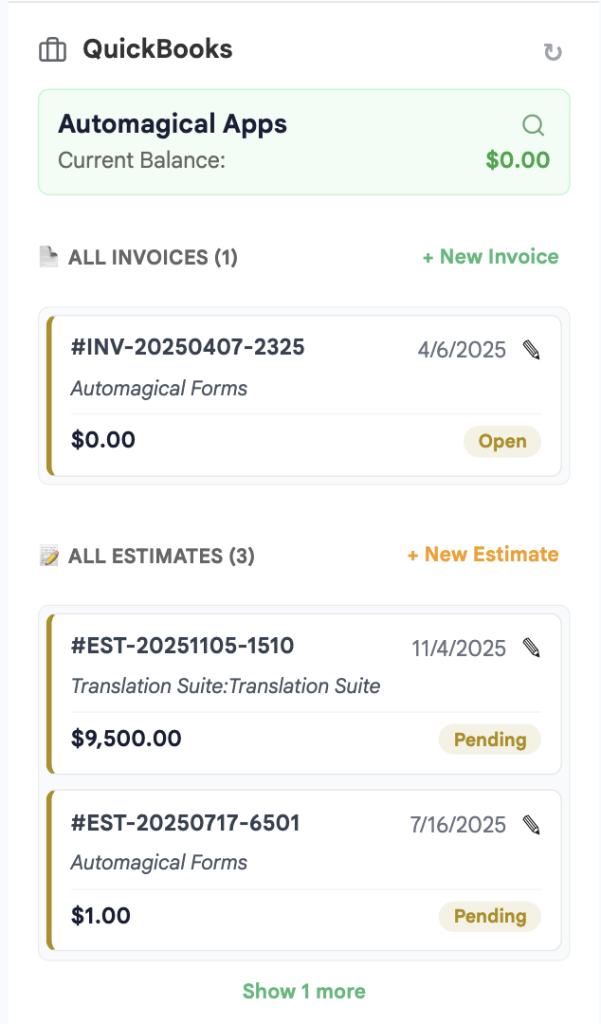
While there are several ways to bridge these two apps, Automagical Nudge stands out as the most powerful free tool available in 2026. It isn’t just a connector; it’s an intelligence layer and an email sequencer that sits right inside your Gmail.
Key Features of Automagical Nudge:
- The Sidebar Command Center: When you open an email, the sidebar automatically pulls that customer’s data from QuickBooks. You can see company details, open balances, and all active invoices or estimates.
- One-Click Transactions: Need to send a quote? You can create any transaction directly from the sidebar. It syncs to QuickBooks instantly.
- The “Nudge” Sequence: QuickBooks lacks flexible automated follow-ups. Automagical Nudge allows you to set up conditional email campaigns (e.g., “Email 3 days before renewal,” “Email on the due date,” and “Follow up every 2 days if unpaid”).
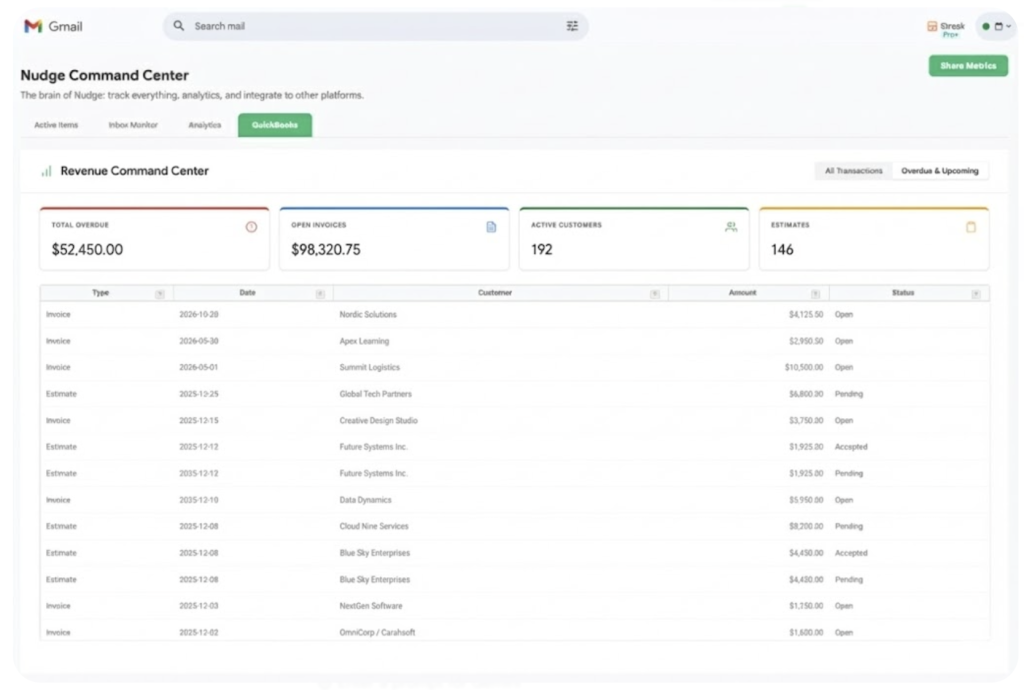
- Overdue & Upcoming Dashboard: A dedicated tab within Gmail shows you exactly what money is coming in and what is late, allowing you to start “nudge campaigns” in bulk.
How it Compares to Alternatives
| Feature | Automagical Nudge | Native QBO Integration | Third-Party Connectors (e.g., SyncQ) |
| Cost | Free (Basic Tier) | Included with QBO | Paid (usually $15+/mo) |
| Context Switching | None (Built into Gmail) | High (Requires QBO tab) | Low (Sidebar-based) |
| Email Sequencing | Advanced (Multi-step) | Basic/Limited | Limited |
| Setup Time | < 1 Minute | N/A | 5–10 Minutes |
Why it wins: Most paid alternatives charge per user or per connection. Automagical Nudge offers a robust free tier that covers the essential “Nudge” campaigns and full QuickBooks visibility that small businesses need.
Step-by-Step: How to Connect QuickBooks to Gmail for Free
Setting this up is surprisingly simple and doesn’t require a developer. Follow these steps:
1. Install the Extension (Automagical Nudge)
Go to the Chrome Web Store or the Google Workspace Marketplace and search for Automagical Nudge. Click “Add to Chrome” and sign in with your Google account.
2. Connect Your QuickBooks Account
Open Gmail. You will see the Automagical Nudge icon (the green unicorn) in your right-hand sidebar. Click it, select Connect QuickBooks, and follow the secure authentication prompts to link your company file.
3. Access Customer Intelligence
Open any email from a customer. The sidebar will “automagically” search your QuickBooks records. You’ll see their open balance and transaction history immediately.
4. Set Up a Nudge Campaign
Navigate to the QuickBooks Command Center within your Gmail sidebar. From here, you can view your “Overdue” or “Upcoming” invoices. With one click, you can apply a “Nudge” sequence to these customers so the software handles the follow-up for you.
Final Thoughts: Stop Chasing Invoices
Get started with Automagical Nudge by installing it here
As of early 2026, the QuickBooks feature within Automagical Nudge remains completely free on their basic tier. It’s the ultimate “productivity hack” for anyone tired of chasing customers for payment or wasting hours in manual data entry.
Pro-Tip: Use the “Upcoming” tab to start your nudge sequences before the invoice is even due. Reminding a customer three days in advance is the best way to ensure your cash flow stays healthy.