If you’ve ever wished your Google Slides presentations could exist in every language, you’re in the right place. ✨
Slides Translator by Automagical Apps turns any Google Slides presentation into a multilingual experience — letting you instantly translate text, slides, and even images directly inside Google Slides.
This step-by-step guide walks you through everything: from installing and getting started to advanced features like translating background images, pulling text out of visuals, and creating a copy of your translated slides.
There is a free lifetime usage tier of up to 100 translate slides per month — so try (forever) before you buy
Whether you’re an educator, marketer, or multilingual team, this tutorial will help you save time and keep your presentations globally accessible.
🪄 1. Getting Started with Slides Translator 0:09
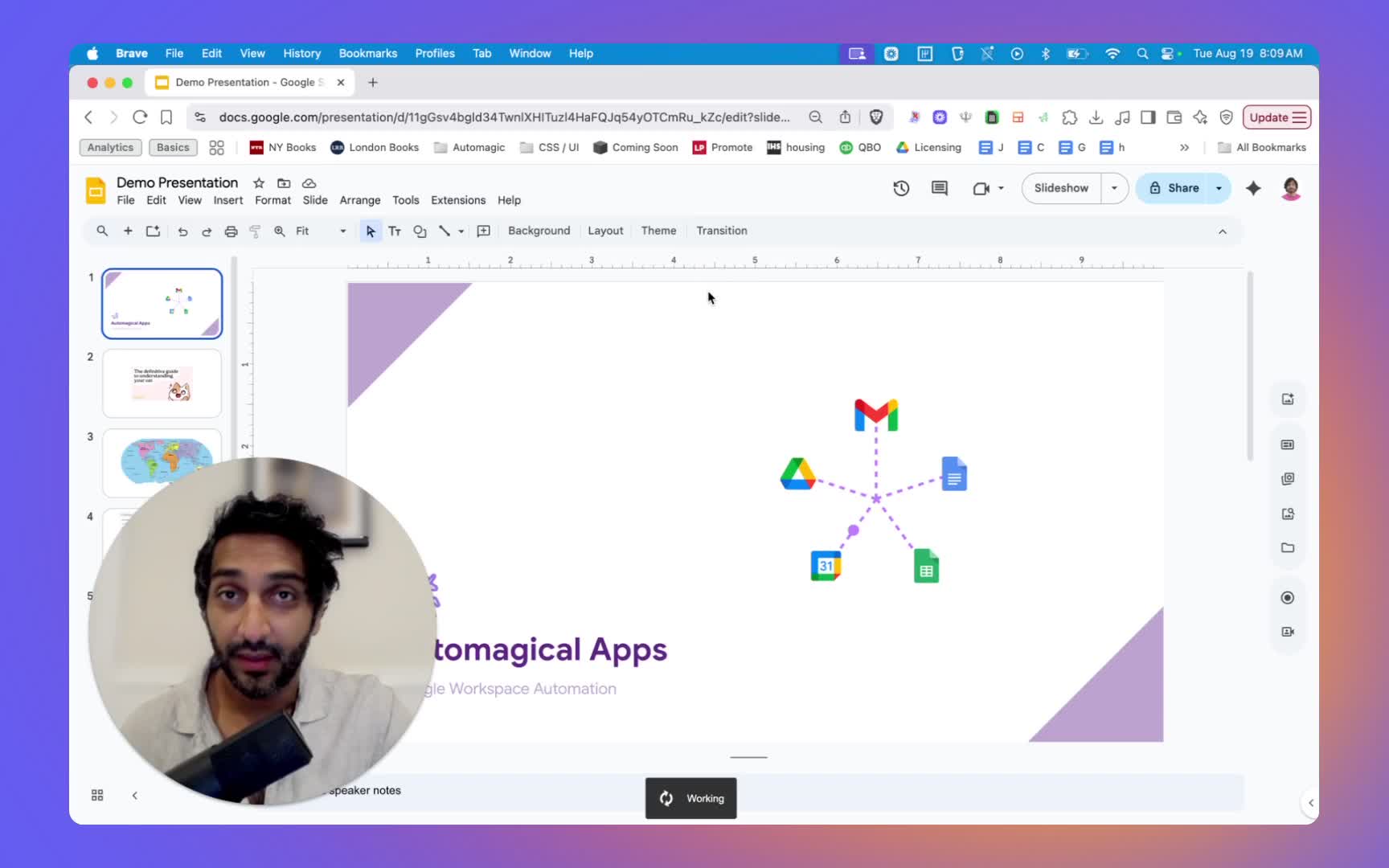
- Open Google Slides.
- Click on the Extensions menu.
- Select Slides Translator, then click on Translate.
- A sidebar will open with translation options.
💡 Pro Tip: If you don’t see Slides Translator in your Extensions menu, make sure it’s installed from the Google Workspace Marketplace.
🌐 2. Translation Options 0:26
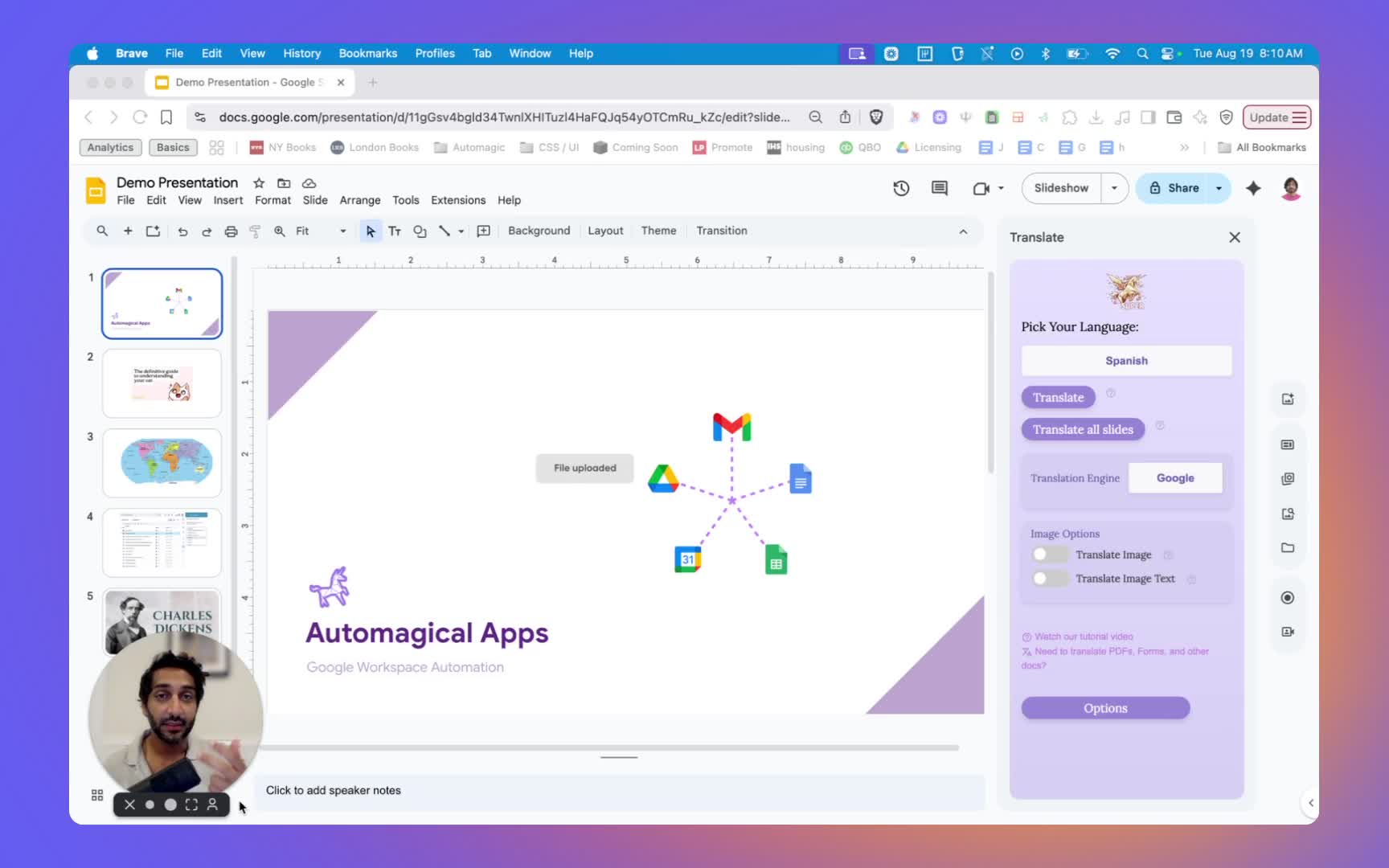
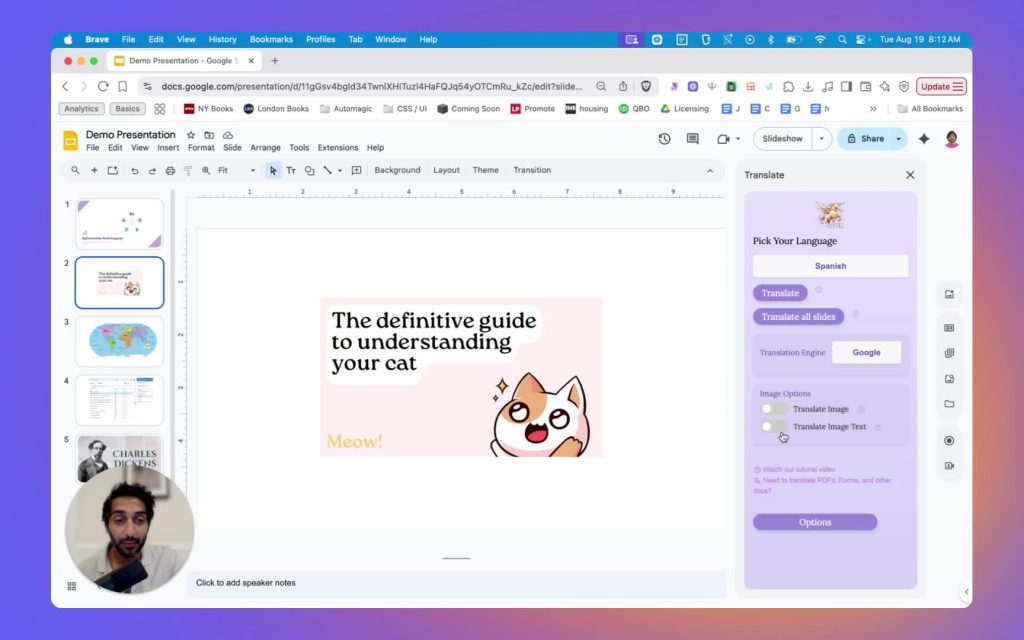
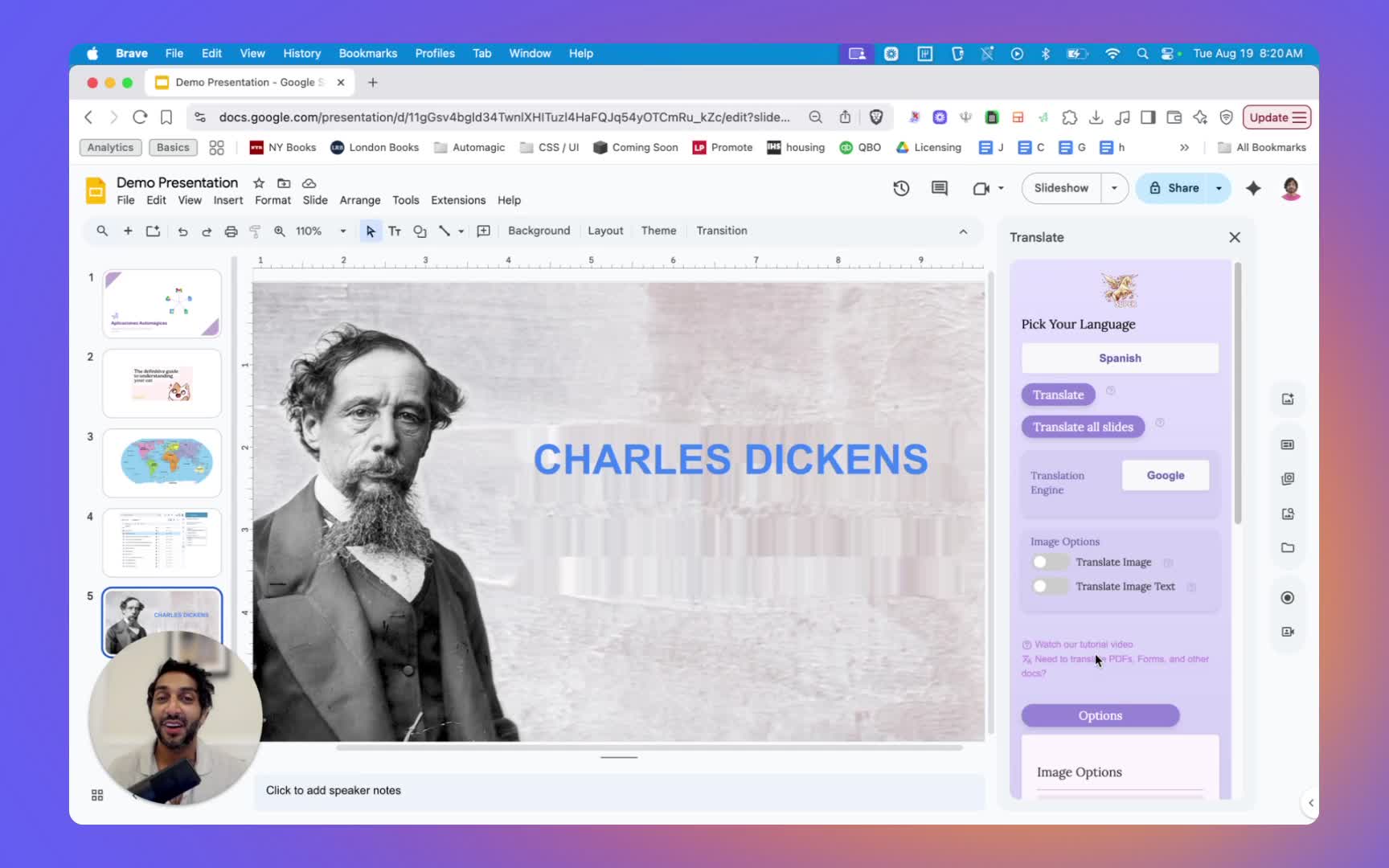
You can choose between:
- Translate: Translates selected text or slide(s)
- Translate All Slides: Translates your entire presentation.
It’s best to start small — try a slide or two to test how your content looks before translating everything.
💬 3. Selecting Translation Language 1:00
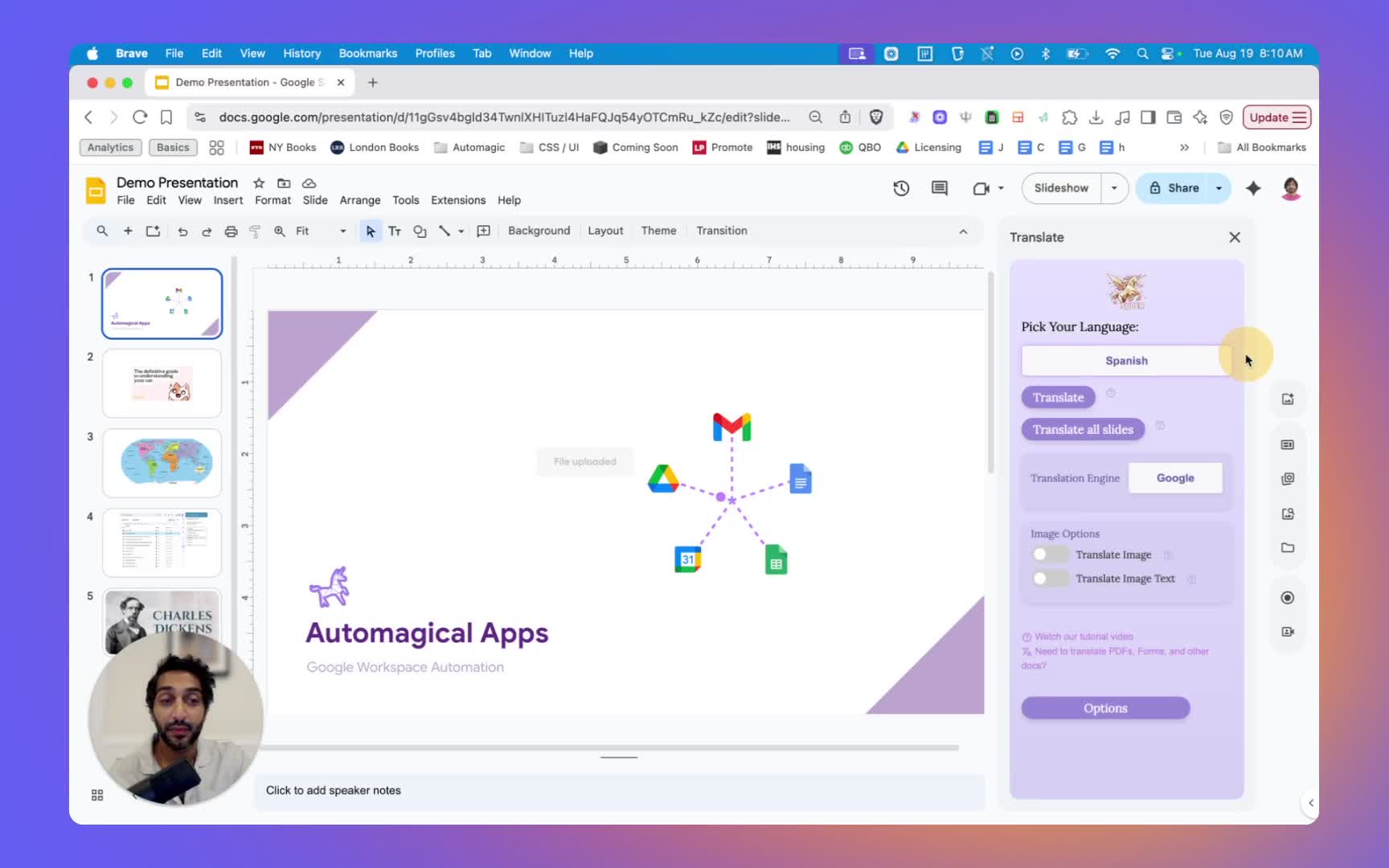
Slides Translator gives you access to over 100 languages powered by the Google Translation Engine.
For higher-quality translations or specific tone control, you can upgrade to:
- 🧠 DeepL Translation Engine (school or business license required)
- ⚡ Gemini Translation Engine (school or business license required)
🎨 4. Translating Slides 1:46
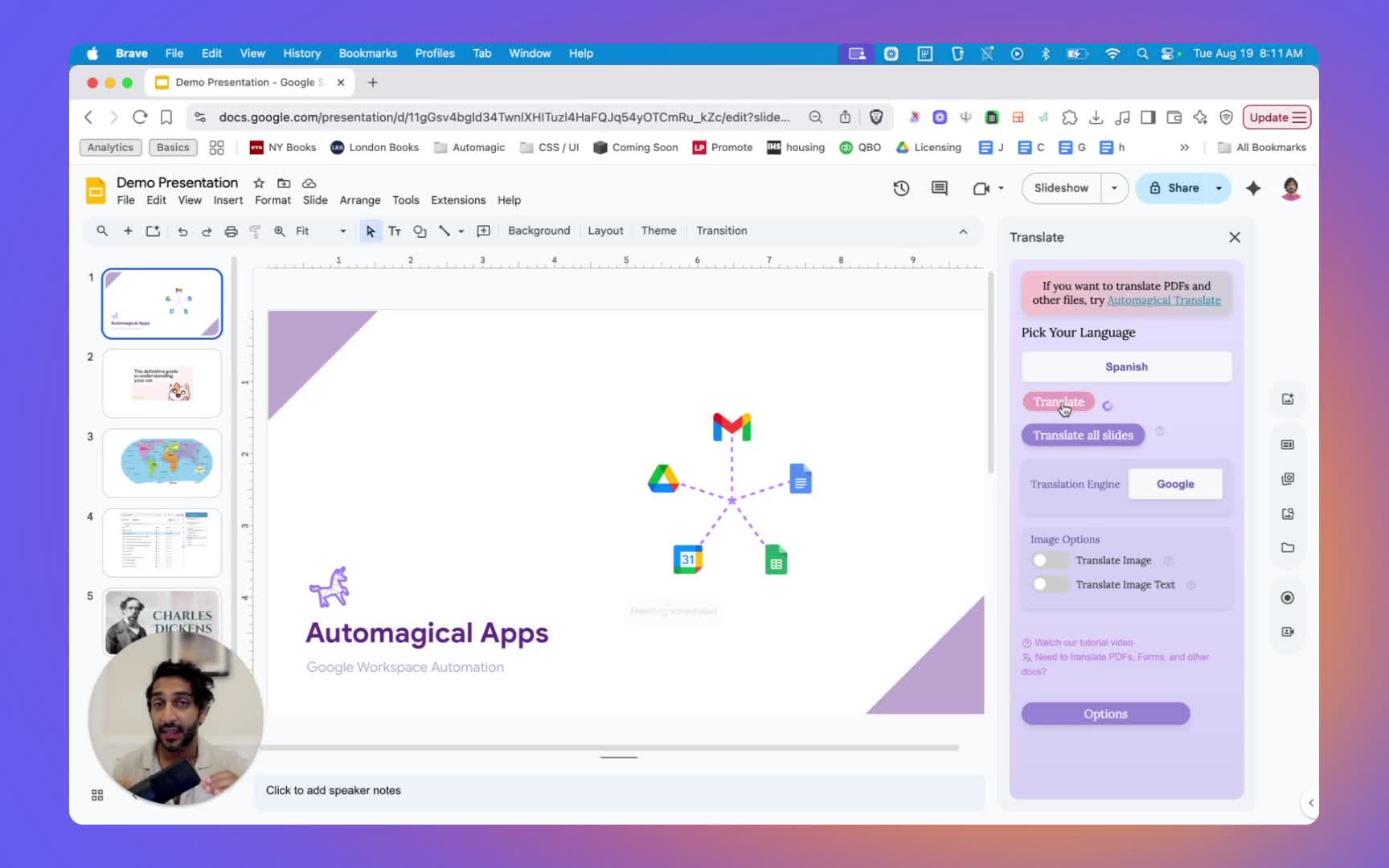
- Select a slide and choose your translation method.
- The layout, fonts, and design remain unchanged after translation — perfect for professional decks and classroom slides.
🖼️ 5. Translating Images in Slides 2:08
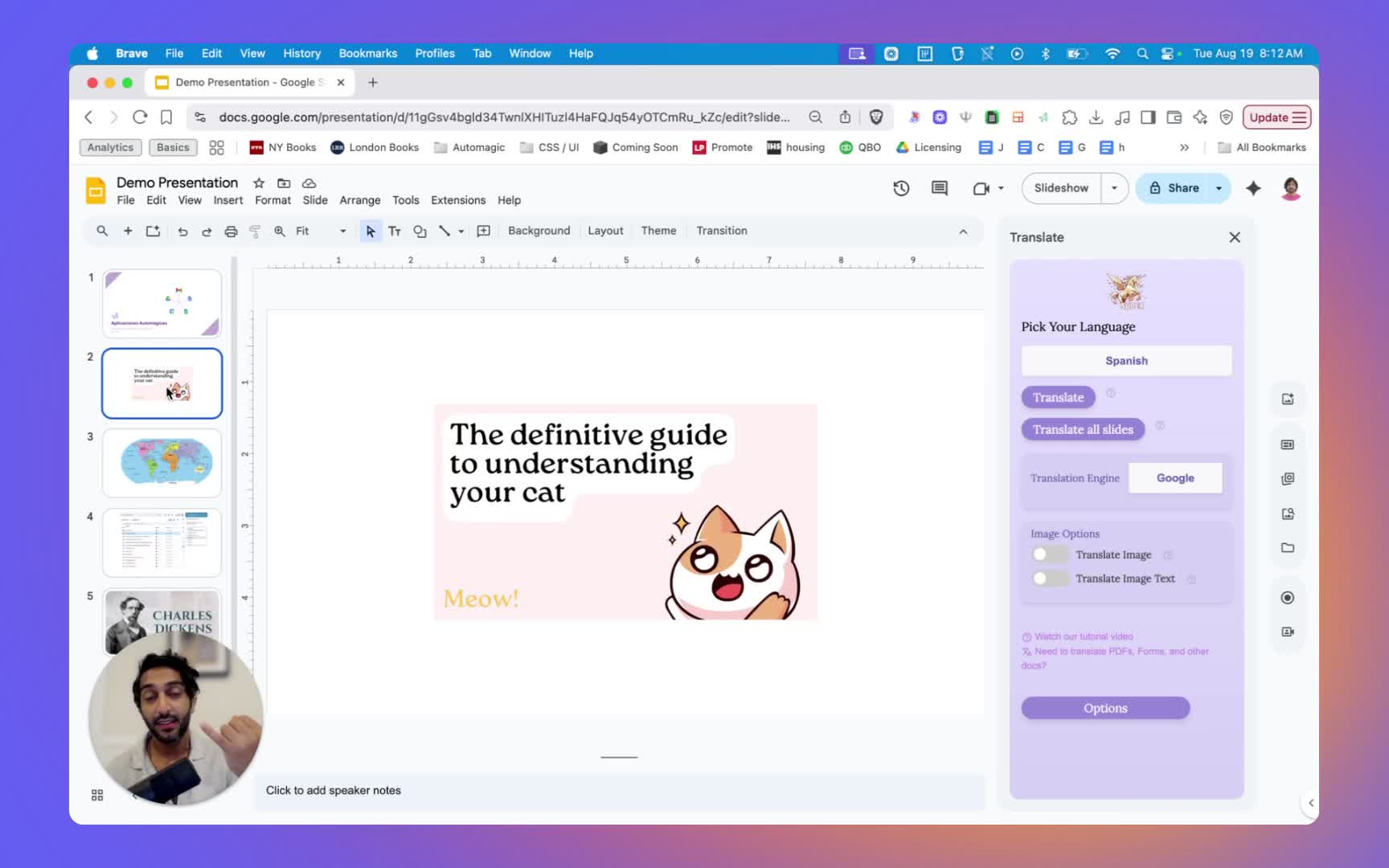
Slides Translator lets you handle images three different ways:
- Pull text out: Translate only the text, leaving the image intact.
- Translate image without modifiable text: Creates a new translated image.
- Translate image with modifiable text: Allows you to edit translated text after translation.
🔍 6. Pulling Text Out of Images 2:27
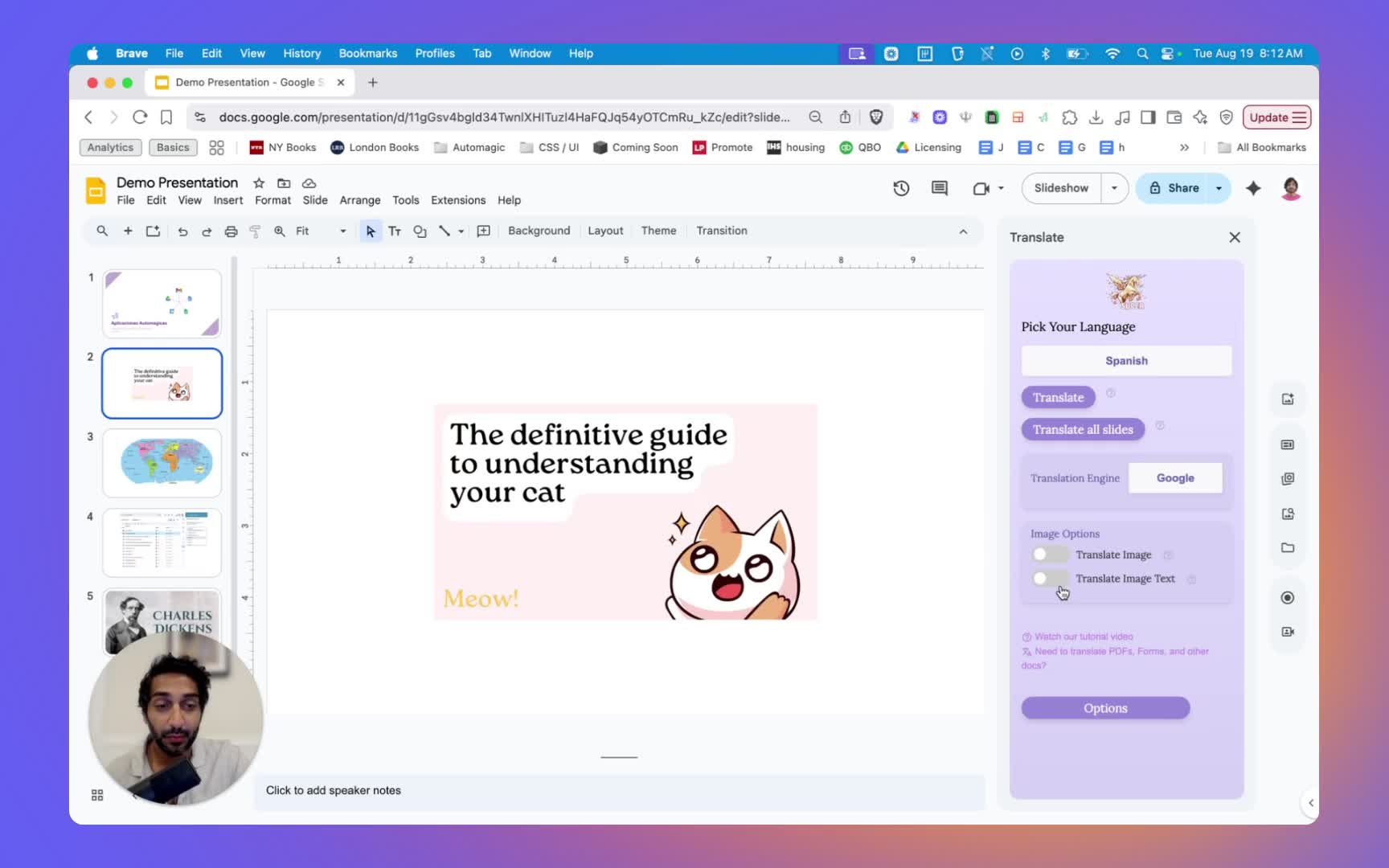
- Use the “translate image text” toggle to extract text from images.
- Great for graphics where text content is more important than the visuals themselves.
✏️ 7. Translating Images with Editable Text 3:13
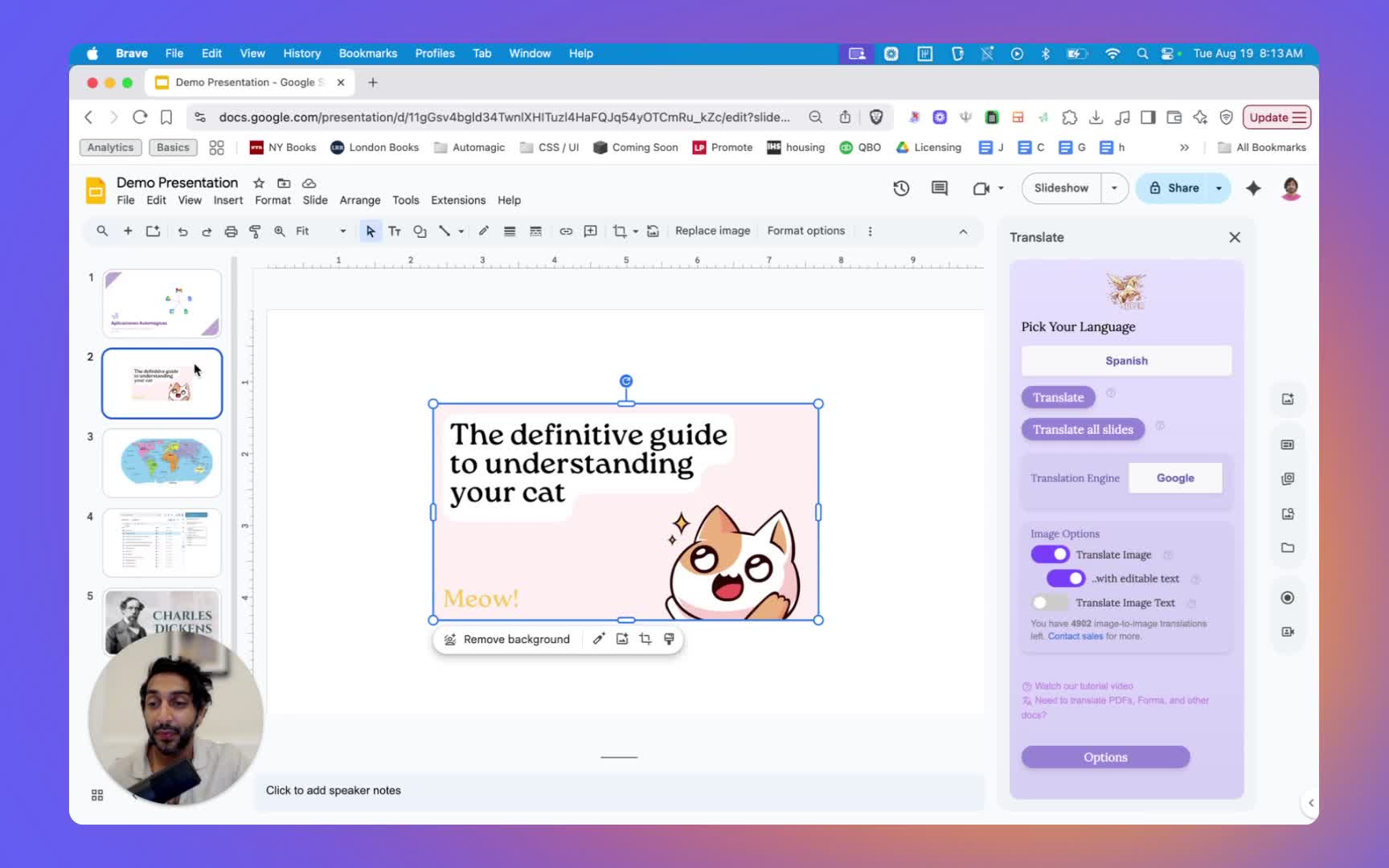
- Enable both “translate image” and “with editable text” toggles.
- You can then tweak or rewrite the translated text directly inside the image.
Perfect for designers or presenters who want control over visual polish. 🎨
🧩 8. Translating Images without Editable Text 3:50
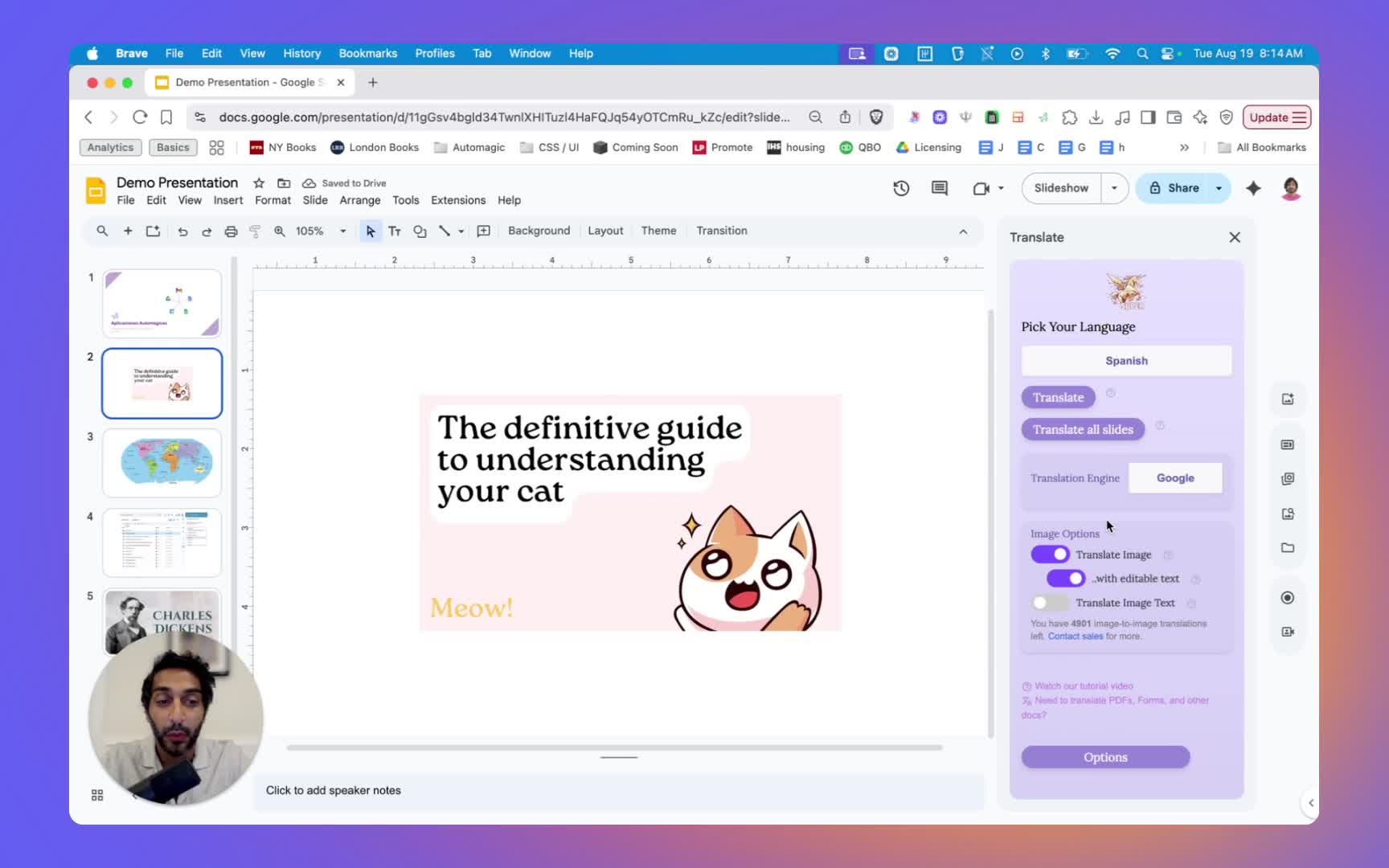
- Turn off the “with editable text” toggle.
- This uses a different AI model and often preserves design fidelity for complex visuals.
🖼️ 9. Handling Complicated Images 5:03
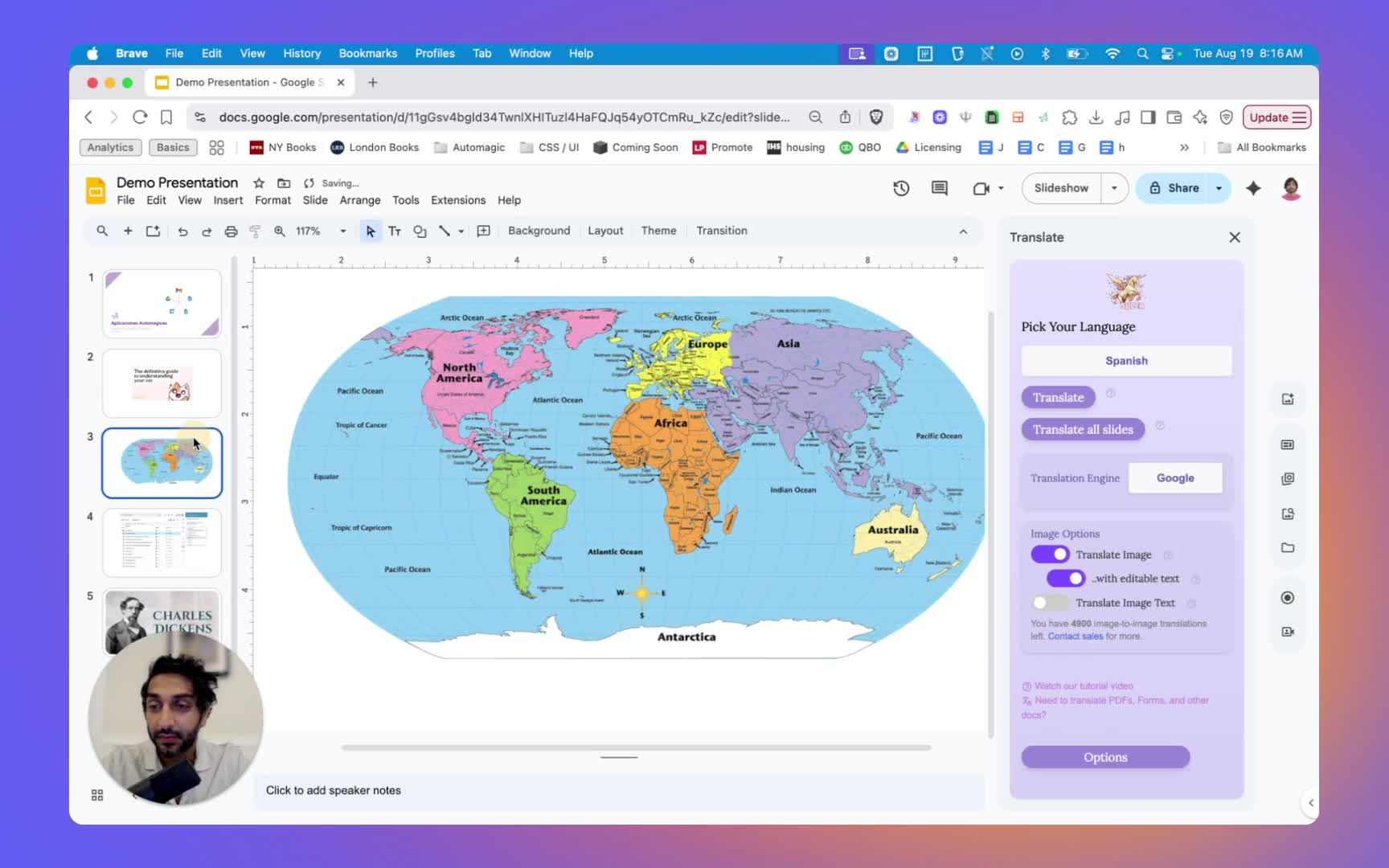
For visually complex or text-heavy images, try translating without editable text — it maintains layout accuracy and avoids misalignment issues.
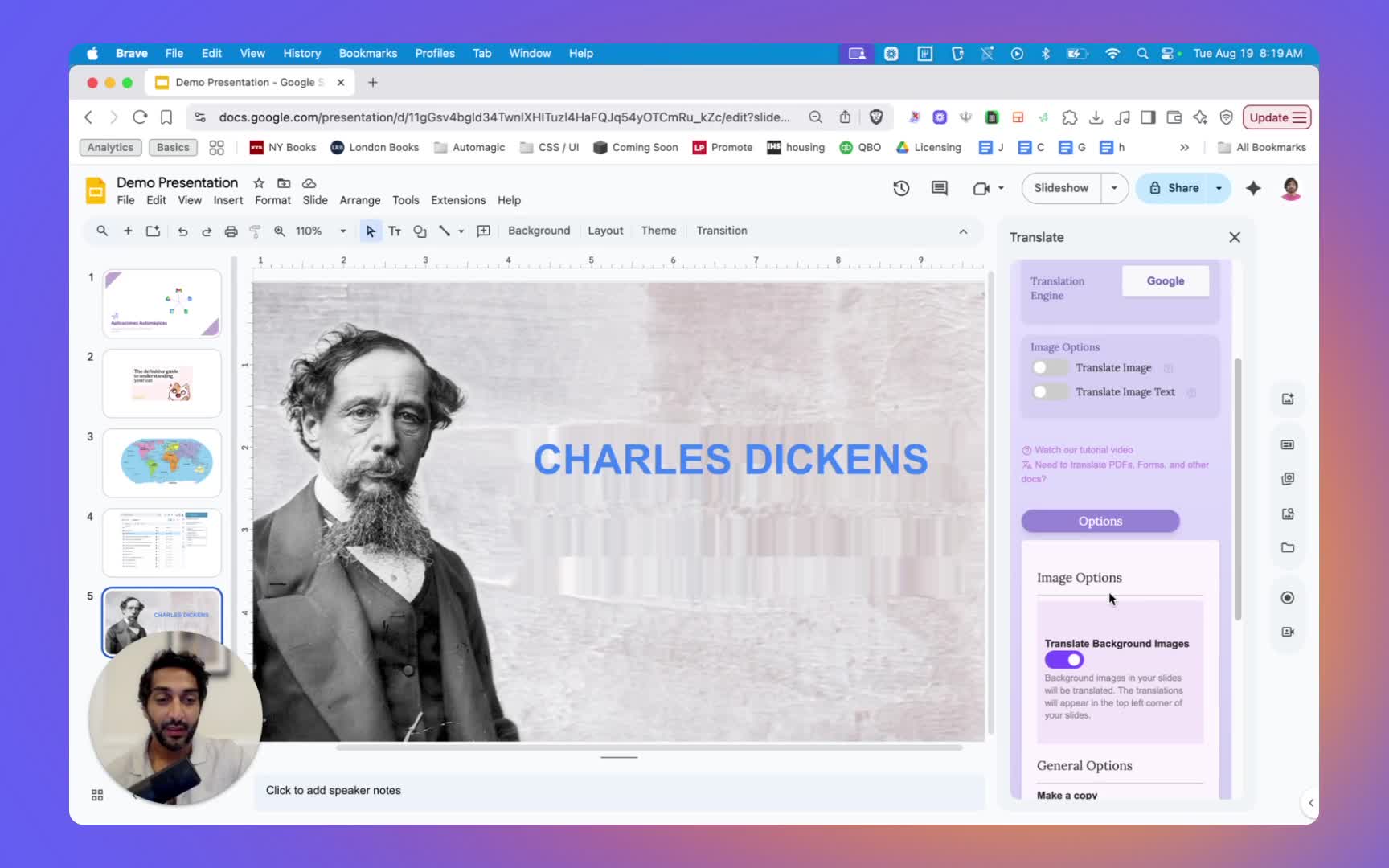
🌅 10. Translating Background Images 6:35
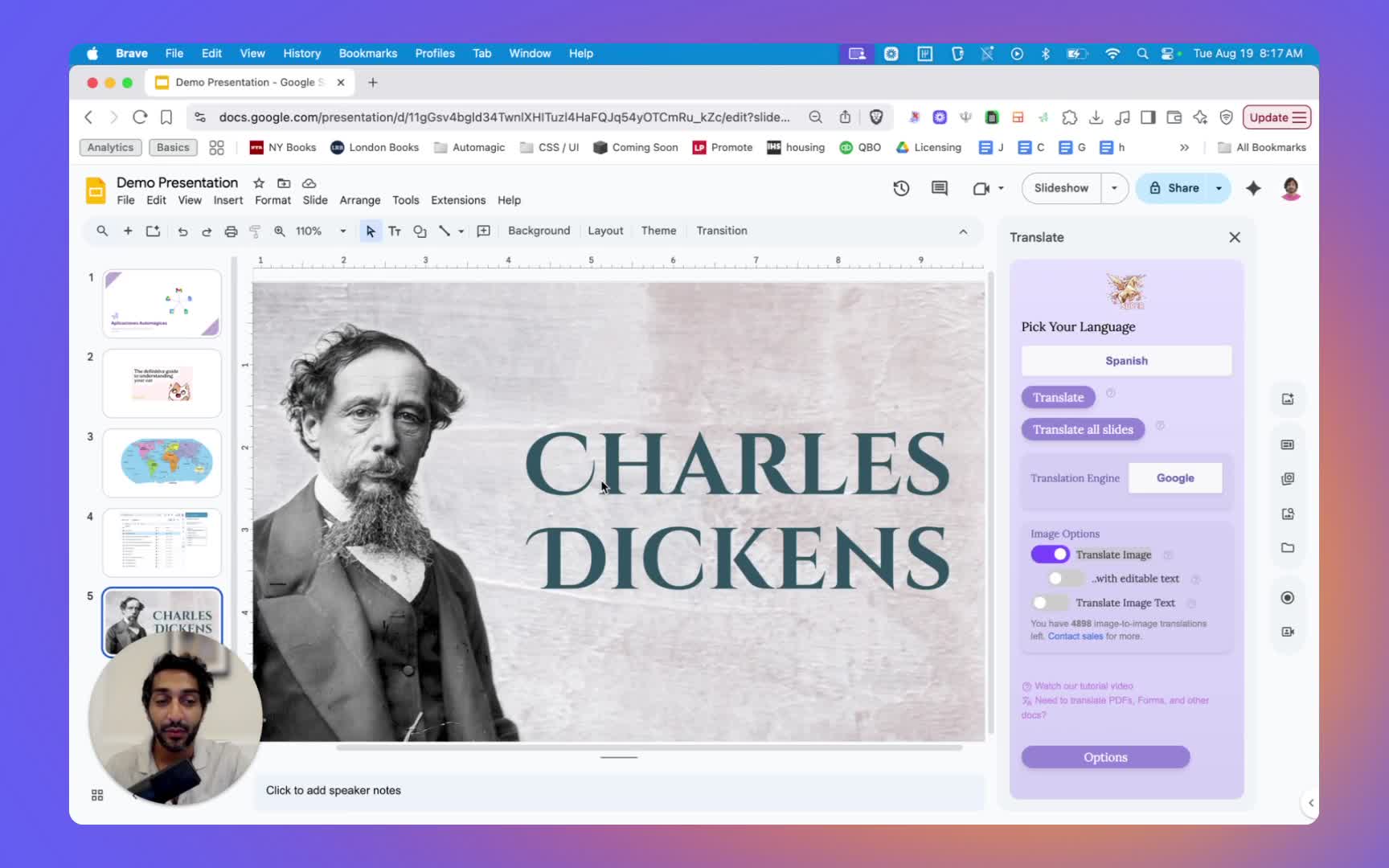
- Enable “Translate Background Images” in Options.
- Choose between editable or non-editable text modes depending on your use case.
📂 11. Making a Copy of Translated Slides 7:51
- Toggle “Make a Copy” to create a new presentation in your target language.
- This works only with the Translate All Slides option.
Perfect for schools or companies maintaining multilingual versions of a single deck.
💡 12. Additional Features 8:31
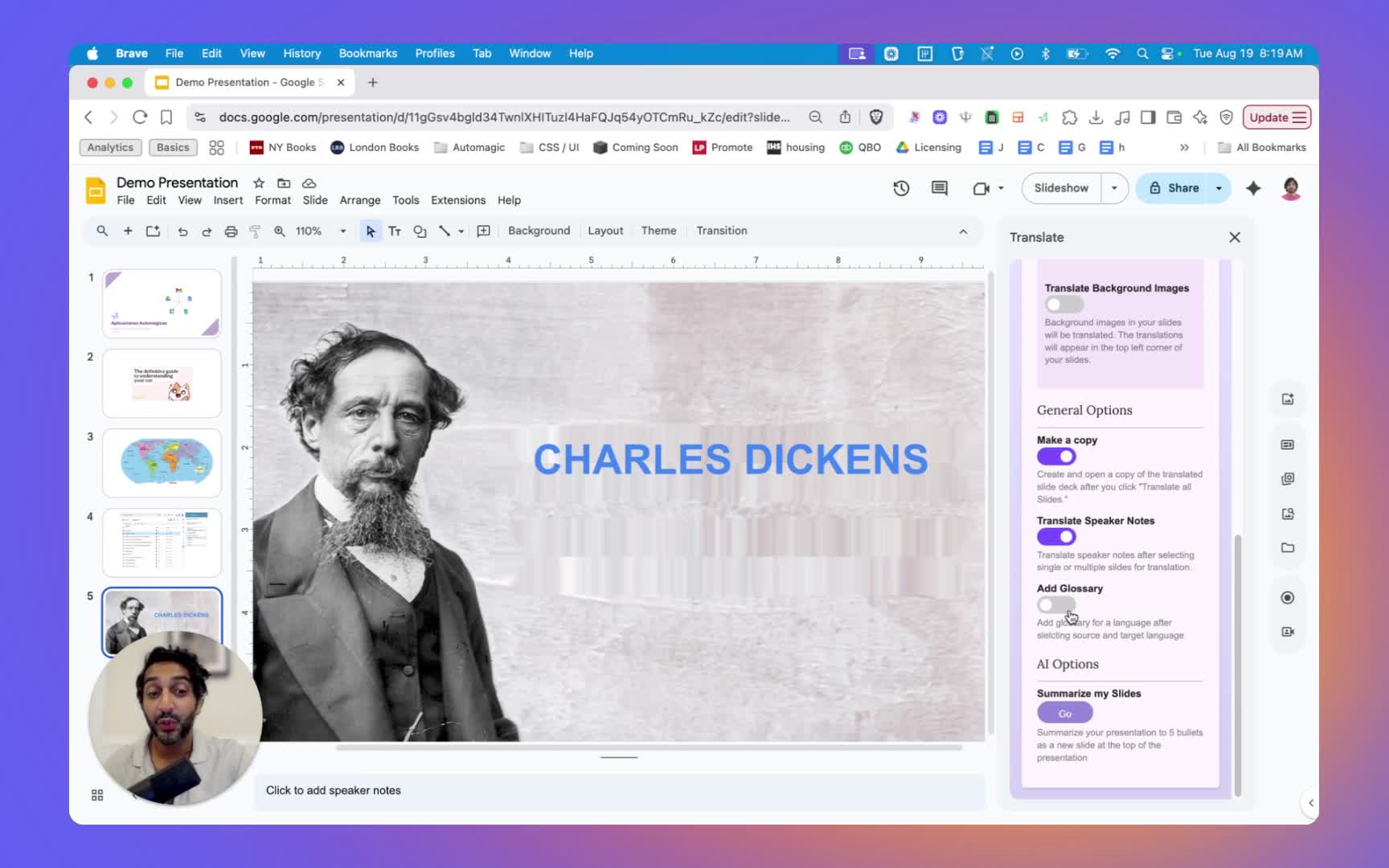
Slides Translator also offers powerful extras:
- Translate speaker notes to support multilingual presentations.
- Add a glossary for custom keyword or brand-specific translations.
- Automatically summarize slides into five key bullet points — ideal for overviews or executive decks.
🤝 13. Support and Licensing 9:07
- Need help? Contact support@automagicalapps.com
- Interested in a school district or enterprise license? Email sales@automagicalapps.com for volume access and additional translation engines.
🎥 Watch the Full Tutorial
See the complete walkthrough on Loom.
✨ Final Thoughts
In a world where collaboration crosses borders daily, Slides Translator makes multilingual teamwork frictionless. Whether you’re preparing a bilingual lesson plan, pitching to an international audience, or translating visual-heavy slides, this Google Slides add-on does the heavy lifting for you.
By combining Google’s translation engine with advanced AI tools like DeepL and Gemini, it ensures your content stays accurate and visually beautiful.
So go ahead — open your deck, click Extensions → Slides Translator, and let your slides speak every language. 🌎💬
#SlidesTranslator #GoogleSlides #AITranslation #EdTech #AutomagicalApps #LanguageLearning #ProductivityTools #DeepL #Gemini #GoogleWorkspace